Tag: virtualization

  • Making Ubuntu Server Work in Sun's VirtualBox

    Here’s a quick fix if you’re interested in installing a VM running Ubuntu Server in Sun‘s OSS virtualization tool, VirtualBox.

    After installing the 32bit version of Ubuntu Server 8.10 in VirtualBox 2.0.4 on my MacBook Pro (OSX), I was faced with the following error message when starting the VM, which I found also happens on other platforms:

    This kernel requires the following features not present on the CPU: pae

    From Wikipedia:

    Physical Address Extension (PAE) refers to a feature of x86 and x86-64 processors that allows more than 4 gigabytes (GB) of physical memory to be used in 32-bit systems, given appropriate operating system support.

    Fortunately, the fix was as easy as pie:

    • Once VirtualBox is up and running, select your Ubuntu Server VM.
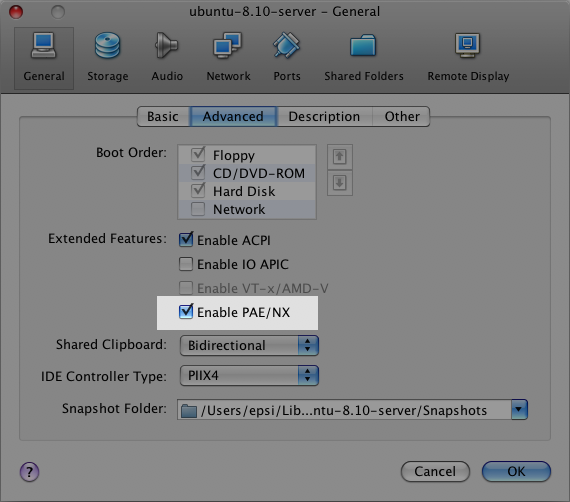
    • Go to the “General” configuration screen and select the “Advanced” tab.
    • Check the “Enable PAE/NX” option.

    Here’s a screenshot:

    Ubuntu Server in VirtualBox: PAE/NX option selection

    Try starting your VM again, and all should go as planned. It did for me.

  • SSH Setup for EC2 UI on Mac OS X

    If you are using Amazon’s EC2 as a cloud hosting solution, you owe it to yourself to install the most excellent EC2 UI Firefox extension (source) to manage your server instances (note: not yet compatible with Firefox 3).

    Now, if you also happen to be on Mac OS X, one annoying thing is that EC2 UI is configured by default to be used on Linux (and GNOME). Looking online, all I could find were questions on how to set EC2 UI on OS X to use the proper terminal and ssh, but no answer.

    Fear not! Yours truly spent a few minutes on the case, and ended up finding a solution that is at least viable for myself, and will hopefully be for you as well. The trick is that I have X11 installed on my OS X box anyway, so I just use the binaries intended for this package.

    EC2 UI setup for OSX

    There you have it. Now, I can right click on any instance listed in EC2 UI and select “SSH to Public DNS Name”. X11 and xterm are both seamlessly launched and proceed to log me into the desired instance.

  • Parallels Desktop for Mac Update RC Wins MacWorld Expo 2007 “Best in Show”

    RENTON, Wash. – January 10th, 2007 – Parallels announced today that its Update Release Candidate (RC) for the Parallels Desktop for Mac, released today, has been named “Best in Show” at the MacWorld Expo in San Francisco. The “Best in Show” award is presented to the most elite of the several thousand products and services on display at the annual MacWorld Expo and Conference.

    Congratulations! 🙂

  • Screenshots of Fedora Core 6 in VMWare Fusion Beta

    Please note: this is an early report, and more details will be posted as I have more time to dig deeper into Fusion. Loads of screenshots in the meantime.

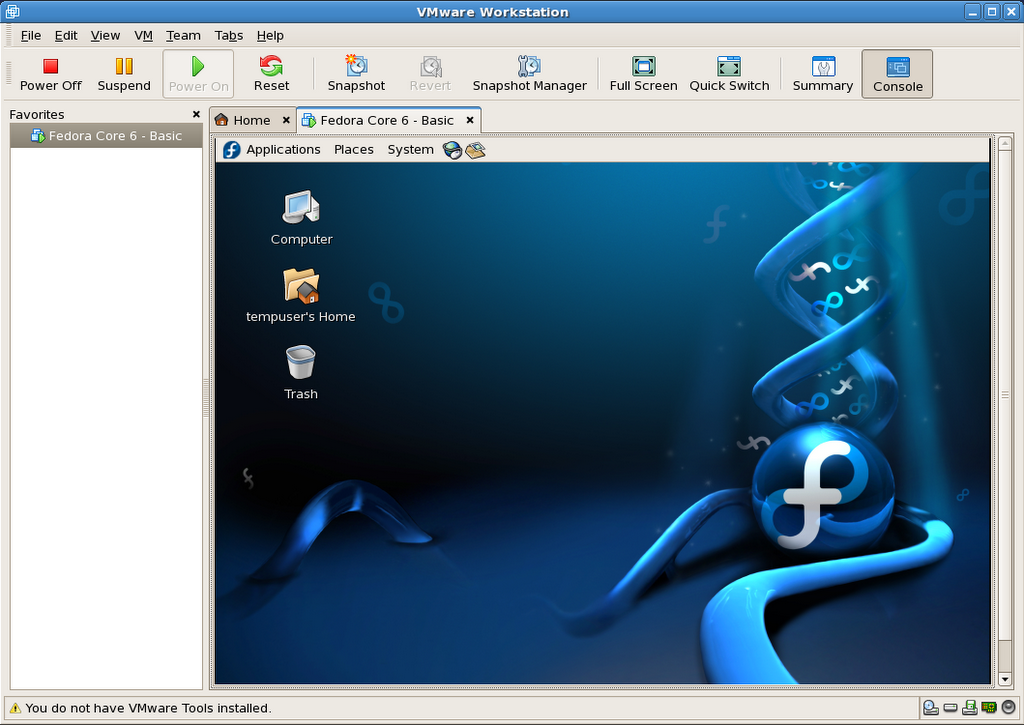
    As I mentioned earlier, VMWare Fusion for Mac has had its first beta version released publicly today. My first thought was to try the existing Fedora Core 6 x86 virtual machine I put up for download a few weeks ago, to see if it would run as is on my 2006 Core Duo Macbook.

    Having experience with both VMWare on other platforms and Parallels Desktop on the Mac, I was eager to see how the two compared. Having moved VMs between OS platforms with VMWare, I really wanted to know if the Mac would indeed be treated equally.

    So since I’m busy packing for a holiday trip, and only have little time for it, I thought I’d post screenshots of how it all went. Hint: it’s all good. 🙂 You can go ahead and download my VM image, and give it a shot for yourself.

    I’m only going to embed a few screenshots below, so the page stays light, but here is a complete archive: FC6_in_VMWare_Fusion_Beta-SCREENSHOTS-20061222.zip (71 screenshots. SHA1SUM: 0e468e48e8727ff842258e720b323960f19b92ad)

  • VMware Virtualization for Mac Beta Released

    The new VMware desktop product for the Mac, codenamed Fusion, allows Intel-based Macs to run x86 operating systems, such as Windows, Linux, NetWare and Solaris, in virtual machines at the same time as Mac OS X. It is built on VMware’s rock-solid and advanced desktop virtualization platform that is used by over four million users today.

    The beta is now freely downloadable. Looks like Parallels is going to have some competition. Eager to see how this pans out, or if Apple builds virtualization in their next-gen OS.

    I also wonder if the VMWare images I have built will work as is on my Mac. Can’t wait to try it.

    Hoping Parallels and Fusion won’t somehow conflict whe installed on the same box.

  • Review of the New Parallels Beta Build

    Since I unfortunately don’t have the time to get deep enough into the new Parallels Beta to write a valuable review about the new features, here’s the LifeHacker review instead. The review covers most of the beta build’s new functionalities and also has nice pictures and videos.

  • Praise Be Parallels Desktop's Performance

    I mean, what else can I say? If you watch the attached video, you’ll see what I mean.

    • Mac OS X 10.4.8, Parallels Desktop
    • Windows XP, Internet Explorer 7
    • Fedora Core 6, Firefox 2
    • Ubuntu 6.10 Desktop, Firefox 2

    All running on my usual 2GHz Core Duo MacBook with 2 GB RAM (512MB/VM).

    Performance is awesome. The video is in real time and the only reason the VMs were set to 800×600 was to try and keep the screencast relatively crisp when converted to a small FLV.

    Tip: It’s in the docs and all, but it took me a while to remember how to launch multiple windows in Parallels Desktop, since it loads VMs in the same window when opening them: File menu » New Window

  • Screencast: Fedora Core 6 Install in VMWare Workstation

    This screencast illustrates installing Fedora Core 6 Linux as a virtual machine in VMWare Workstation. It is based on the series of screenshots offered for download, along with the resulting virtual machine, in my previous post.

    Related posts:

    Enjoy!

  • Screencast: Fedora Core 6 Install in Parallels Desktop

    This screencast illustrates installing Fedora Core 6 Linux as a virtual machine in Parallels Desktop for Mac. It is based on the series of screenshots offered for download, along with the resulting virtual machine, in my previous post.

    Related posts:

    Enjoy!

  • Fedora Core 6 VM Image for VMWare

    As previously mentioned, I have prepared a VMWare equivalent to the Fedora Core 6 image I am distributing for Parallels Desktop.

    You can find the details below:

    FC6_Basic_For_VMWare_5.5.x-Install_Screenshots.tar.gz:
    http download (12.1MB)
    This package contains 76 PNG screenshots of the installation procedure. They show the complete process, from setting up the VMWare image to shutting down a freshly installed and updated copy of Fedora Core 6. Please feel free to produce and distribute a screencast using these very images, if so inclined, as I do not have the time to do so myself right now. (update: I did after all).

    FC6_Basic_For_VMWare_5.5.x-20061105.tar.gz:
    http download (733.4MB)
    This is outcome of the install process shown in the above screenshots. It is fully ready to go, as long as you already have VMWare installed (free player or other).

    Here is a SHA1SUM of the above files.

    Current hosting is generously provided by the McGill Linux Users Group, so please feel free to mirror, or create a torrent, and redistribute all of the present files. Until we have a new site for the McLUG, you can post your mirror addresses and/or torrent file download info right here, as comments. I will compile a list and add it to this file as (and if) they become available.

    The VM package includes:

    • Fedora Core 6 – Basic: VMWare virtual machine folder
    • README.txt: helpful info, support terms (ie: zero, nada, ziltch 🙂
    • Fedora Core 6 – Basic – Install Screenshots: originally installed on an P4 1.65GHz
    • Fedora Mirrors.html: copy of the official Fedora mirror list
    • boot.iso: fedora boot disk used in original http install process

    The install was completed on a Pentium 4 tower (1.65GHz, 1.5GB RAM) running VMWare Workstation 5.5.2 in Fedora core 6, and was also tested on a custom P4 3GHz system running Windows XP SP2 (player), as well as another P4 1.65GHz, but running Fedora Core 5 (workstation).

    Once you have VMWare installed, simply double-click or open “Fedora Core 6 – Basic/Fedora Core 6 – Basic.vmx” to get going.

    VMWare will most likely prompt you for a few things to adapt the image to your environment:

    • Prompts to create a VM unique identifier: choose yes
    • Prompts to map the virtual floppy drive to match yours: choose yes
    • Warns that the VMWare Tools are not installed: I did not bundle them as I’m unsure if VMWare would let me distribute the image freely once installed in the VM.

    Important: The root password is changeme, and the default user is setup as tempuser, with a password of changeme also.

    This virtual machine is currently configured to use 512MB RAM. The VM’s default screen resolution is set to 800×600. You can change any and all of its settings to your heart’s contempt.

    Please note that this work is provided without support, and on a “works-for-me” basis only at this time.

    So there you have it. Enjoy!

    Update 1: Here is another source of ready-built VMWare images.

    Update 2: 2006-11-29: Related post: Screencast: Fedora Core 6 Install in VMWare Workstation

    Update 3: 2006-12-22: This VM will also run as is in the new VMWare Fusion Beta for Mac.