Tag: open source

  • Screencast: Fedora Core 6 Install in VMWare Workstation

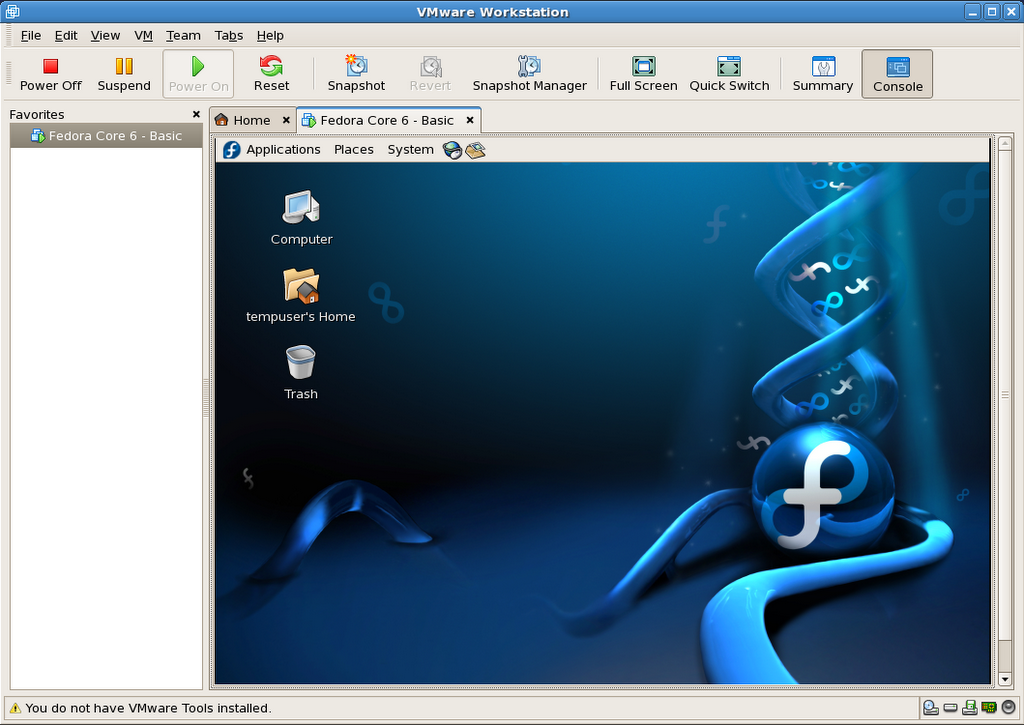
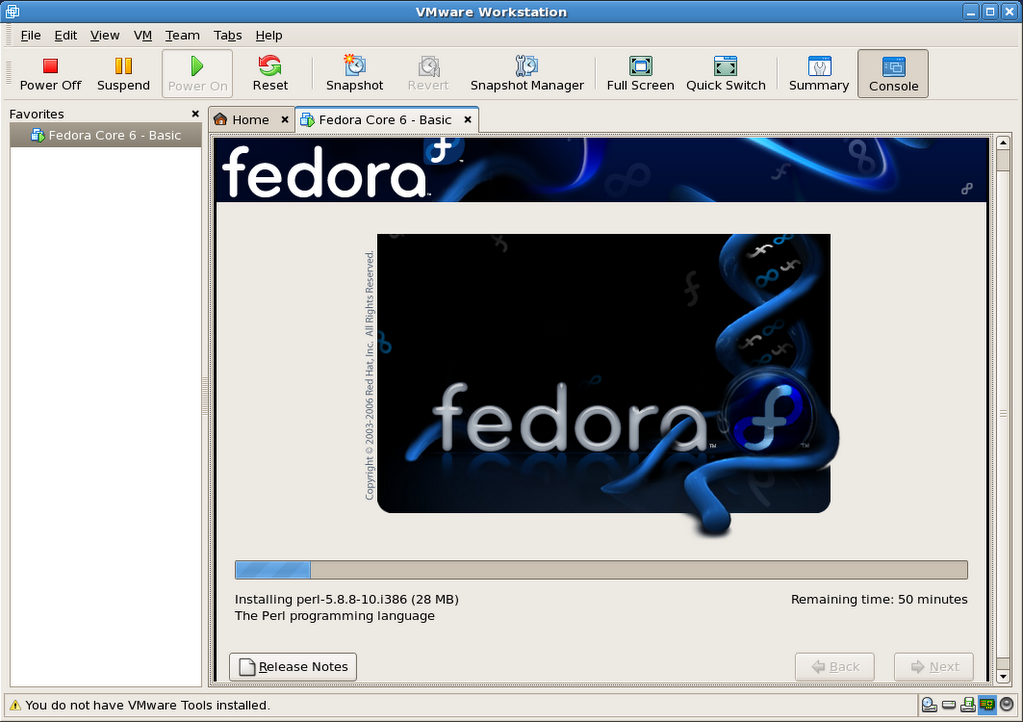
    This screencast illustrates installing Fedora Core 6 Linux as a virtual machine in VMWare Workstation. It is based on the series of screenshots offered for download, along with the resulting virtual machine, in my previous post.

    Related posts:

    Enjoy!

  • Screencast: Fedora Core 6 Install in Parallels Desktop

    This screencast illustrates installing Fedora Core 6 Linux as a virtual machine in Parallels Desktop for Mac. It is based on the series of screenshots offered for download, along with the resulting virtual machine, in my previous post.

    Related posts:

    Enjoy!

  • Linux Install Screencasts Coming Soon

    I’ve been toying around in iMovie, experimenting with it as a screencast tool. A bit away from what I usually do with it, but it’s not bad so far. Fun and easy to work with, as usual.

    Nothing fantastic, but I have a few Linux install movies coming up in the next few days. I’m also going to try uploading them to MetaCafe. We’ll see how it goes.

    Trying to fit this between my 7 year-old son’s hockey games (so far undefeated!).

  • Help Requesting Flash for Linux on PowerPC

    Kai Staats is asking for the community’s support in requesting for Adobe to port Flash 9 for Linux to the Power architecture (YDL, really). He also appropriately suggests for people to submit the requests with consistent[-ish] data, so the numbers work in the movement’s favour.

    Soon to be fully opened sourced, Sun’s Java is sure to quickly become available for this platform, therefore making the Flash player and browser plugin one of the next must-have components remaining to be ported. We will need Adobe to provide us with this port though, since the Flash Player source is not Free or available.

    I haven’t yet, but in the meantime, one could also try to use Gnash, a GNU Flash movie player.

    Update: I tried Gnash 0.7.2 (in FC6 Extras) on my iBook G3 tonight. It’s promising, but most definitely is a work in progress to say the least (admittedly so: alpha 2). Most simple animations work fine enough, but more advance Flash movies are still out of reach. It also does not seem to support the now iconic Flash Video format (flv), now made ubiquitous on the Web through such high profile sites as YouTube, Google Video, MetaCafe, and countless others.

  • Compiling and Using ClusterSSH on Mac OS X

    The challenge

    We use a cluster of GNU/Linux-powered nodes behind a Cisco load balancer to serve some of our web sites. These nodes being quasi-identical (most config, filesystems, etc), we often need to apply the very same changes, via ssh, to each of them at once in our daily maintenance tasks.

    ClusterSSH to the Rescue

    ClusterSSH is a small Perl/TK utility that controls a number of xterm windows via a single graphical console window to allow commands to be interactively run on multiple servers over an ssh connection. This means that you type your shell commands once, and they simultaneously run on all of the servers ClusterSSH is connected to.


    CusterSSH in action on Mac OS X (Tiger, MacBook)

    A perfect fit for our needs, but not quite limited to our higher end environment. Using ClusterSSH, you can control x number of computers via ssh, whether they are exact replicas of one another (cluster) or not. This can be especially useful in a computer lab environment, or with any large number of similar systems that you want to edit from the command line.

    EG: You can easily run softwareupdate on OS X or yum/apt on Linux, or even download a file from a central server, on all the computers in your office at once and without the need for more elaborate or expensive graphical solutions.

    For the record, there is another project on SourceForge that shares the same purpose and executable name (cssh), but that project has not seen a release since 2004, unlike ClusterSSH, which seems to be kept rather well up-to-date by its developer(s).

    But wait, we’re on OS X

    ClusterSSH is an X11-based application, which Apple has been providing a port for OS X for years. But if you are on an Intel-based Mac, you might have been wondering where to find the said port for your architecture, since it is not an install option on the DVD provided with your new machine. Well, it is there, but the installer package is in fact in a directory hidden from the Finder.

    To install Apple’s X11 built for your MacIntel, simply do the following:

    • mount the DVD that came with your Mac
    • open a terminal window
    • type open /Volumes/[OSX_DVD]/System/Installation/Packages/X11User.pkg where [OSX_DVD] is the volume name of the install DVD
    • go through the newly launched installer
    • tada!

    Maybe Apple thought their Universal Binary version was only half-baked (…), at least until the latest update they released on November 13, which was itself Intel-ready. Should you choose not to install the latter, you will be prompted to update X11 the next time you run Software Update.

    The Perl install that comes bundled with OS X lacks one of the modules that ClusterSSH relies on to provide a small GUI window for you to type your distributed commands in: Tk. Depending on when you read this (2006-11-21), you might want to run a CPAN search for a newer version than the one I link to.

    Installing Tk is quite easy if you are familiar with the terminal, and requires for you to have installed the Developer Tools that came bundled with OS X.

    • get the latest Perl/Tk module from CPAN
    • decompress the downloaded archive
    • important: open X11 (Applications Β» Utilities), and use its terminal for the next steps
    • cd to the Tk folder
    • perl Makefile.PL
    • make
    • make test
    • sudo make install
    • and you should be done

    The make test step will procedurally try the miscellaneous X interface components that Perl/Tk provides, hence the need to run it in X11. All went fine in my context, but you can find more information on Steve Lidie‘s site at Lehigh University if needed: Perl/Tk and Mac OS X.

    On to compiling ClusterSSH

    Now that we have met ClusterSSH prerequisites (X11::Protocol is bundled with OS X), we can move on and compile the software for OSX.

    • get the latest version of the source from the official site.
    • decompress the downloaded archive
    • in a terminal window, cd to the clusterssh-* folder
    • ./configure
    • make
    • sudo make install

    On many UNIX systems, you might now be able use the cssh command, but in OS X, you will probably need to make sure that your environment knows to look for software in /usr/local/bin by default, particularly in the terminal. To do so:

    • go back to the terminal
    • type env
    • see if /usr/local/bin is part of the list making up the PATH variable
    • if not type export PATH=$PATH:/usr/local/bin then exit.

    And that is essentially it…

    Using ClusterSSH

    Now that everything is installed, keep in mind that the purpose of this software is to run the same actions on a number of connected computers, which obviously has tremendous advantages, but also countless dangers.

    Read every command before running them, and make sure you did not accidentally or temporarily shifted the window focus to one of the nodes, therefore processing your request one one of the hosts only.

    Before you start using cssh, make sure to have a user with the same username and password combination on all of the targeted hosts, unless you opted to pass some of these parameters in the individual connection strings.

    Then, in an X11 terminal window, use the cssh command as illustrated below:

    cssh user@your.host.1 user@your.host.2 user@your.host.3 [...]

    When all of the windows are launched, be sure to
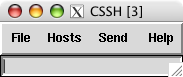
    put t
    he focus on the small window (see right) and type your commands. In most cases, this will mean starting by typing your password to the computers your are connecting to. And then, you’re off to the races.

    You can take some steps to make your time with ClusterSSH easier, such as using ssh keys to forgo having to type a password altogether (think about security though). You can also write a small shell script already containing the full list of nodes you are most often connecting to.

    I have successfully tested ClusterSSH on Mac OS X 10.4.x (Tiger) on:

    For more information you can now use man /usr/local/man/man1/cssh.1 in the terminal to see the full cssh documentation, or see the online FAQ.

    But please, do keep reminding yourself that the old “rm -rf ~/*” clichΓ© is multiplied by the number of hosts you are connected to. πŸ˜‰

    Enjoy.

    Update 1: a comment attached to this post led me to a similar tool that has its own advantages, and is well worth mentioning here: dsh.

    Update 2: for those of us also running GNU/Linux, ClusterSSH is also available as a pre-compiled Debian package and Fedora RPM.

  • Having a bad tech weekend…

    I started on a quest to install Linux PPC on my older iBook G3 yesterday. I wanted to try and breathe some productivity back into it, as Apple has been phasing out G3 support over the last few years. But I’m not having too much luck so far…

    I first installed Fedora Core 6 PPC, which all seemed fine until I tried to put the laptop to sleep. The whole thing crashed on wake up, and corrupted GNOME so bad, for all users, that I was unable to recover from it, even after rebooting…

    Fedora Core 6 error when waking the G3 iBook from sleep
    Not being in the mood to troubleshoot the thing, I decided to give a try to Ubuntu Desktop 6.10 PPC instead. Again, the install went fine, and sleep was working this time, but then I was quickly remembered why I stuck to a server environment when running Linux PPC in the past: no flash, no easy way to play video (vlc, mplayer, xine, ffmpeg, etc all crashed), no java, no wpa wireless security protocol setup by default, etc.

    Aaaaaaaargh! I’ve had enough of that for one weekend… And it’s not for lack of trying, as I’ve probably spent more than 12 hours giving it all a fair try. But not being the type to just give up completely, I’m getting the FC6 PPC DVD at work as we speak, and I’ll try again next week. Knowing Linux, there are probably solutions to most of my problems.

    We shall see.

  • Sony OtherOS Installer for Sony PlayStation 3 Released


    Last saturday, I posted about Terra Soft releasing Yellow Dog Linux 5 for the PS3 on November 27th. And earlier this week, the Fedora developers tried to one-up them by releasing an add-on disc for FC5 PPC (which YDL is based on) to install the original distribution on one’s shiny new console.

    Today, the very much anticipated Sony OtherOS Installer was also made available for download, unleashing the final key to enabling anyone to easily turn the powerful game console into a full blown computer.

    It is advised to use the FC5 PPC DVD, rather than CD set, to proceed with this installation:

    For more details, the Quick Journal team has a couple of nice articles on how to boot and install GNU/Linux on the PlayStation 3.

    I would still imagine, though, that Terra Soft will probably remain the leader in Linux for the Power Architecture, all the more in the enterprise market, given the type of resources they have to support their distribution: dedicated team, first Cell-based supercomputer, IBM and Sony backing, etc.

    But for many, you can’t be early and free! πŸ™‚

    Update: Someone has now posted a video of Fedora Core 5 running on a PS3 on YoutTube.

  • Sony Barking Up the Right Tree for their PS3 Linux

    Yellow Dog Linux for Playstation 3, featuring E17

    Linux on the Playstation 3 (PS3) has been covered before, but the inside story is that Sony Computer Entertainment Inc. (SCEI) has entered in an agreement with Terra Soft Solutions (TSS) to bring Yellow Dog Linux 5 (YDL) to their next generation console, which was actually released today in Japan.

    Under basic agreement with SCEI, Terra Soft was granted a unique opportunity to develop and bring to market a complete Linux OS for PLAYSTATION 3. In the development of Yellow Dog Linux v5.0, Terra Soft integrated and enhanced code from Barcelona Supercomputing Center, SCEI , and Fedora in order to offer the following: kernel 2.6.16, gcc 4.1.1 and glibc 2.4, Cell SDK 1.1, OpenOffice.org 2.0.2, FireFox 1.5.0 and Thunderbird 1.5.0, Nautilus 2.14 … and a suite of Personal Accessories, Development Tools; Sound & Video, Internet, and Networking applications.

    This is indeed a fantastic opportunity for the dynamic team behind YDL, especially now that Apple has completed its transition to the Intel platform, leaving behind the Power architecture. But what could have spelled the company’s dismay is now instead referred to by Kai Staats, CEO of Terra Soft, as a potential blessing in disguise, thanks to the exciting Cell architecture.

    In fact, YDL 5 will initially be released for the PS3 on its North American launch date of November 17th, with Apple and other PowerPC based systems supported later in the year. The product will be available to the YDL.net Enhanced members first (Nov.27), later on DVD (Dec. 11), and for download as a holiday treat (Dec. 25).

    As a long time YDL user both at work and at home, I am ecstatic to know that TSS has found an exciting new revenue model for their solid offering, with a potentially quite large user base if the PS3 proves to be a success, despite heavy competition from the Wii and Xbox.

    PS3/YDL/E17

    Another big winner in this deal is the Enlightenment Project, since their E17 (DR17) desktop manager has been chosen to bring what promises to be a beautiful GUI to the YDL/PS3 combination.

    When it came out in 1997, Enlightenment blew a strong blow to many other desktop environments, UNIX based and beyond, effectively delivering features such as window transparency to even modest hardware.

    Having unfortunately suffered from project management issues in the past, Enlightenment lost tremendous ground to GNOME and KDE over the years, and I am glad to see the new development team benefiting from this project.

    From game console to supercomputer

    Provided the Power architecture’s performance in number crunching intensive applications such as modeling and rendering, Terra Soft is also a very strong contender in the scientific and supercomputing markets, thanks to their Y-Bio and Y-HPC products.

    Y-Bio is Terra Soft’s solution for the growing life sciences market. Built upon the RPM Linux standard for package management, Y-Bio offers gene sequence analysis applications –tools which help bioinformatics researchers conduct their work with greater efficiency.

    Y-HPC is Terra Soft’s cluster construction-management suite for Apple G5 (IBM 970) Xserves. Built upon 64-bit Yellow Dog Linux, Y-HPC offers 64-bit enhancements for code development. In use by the Department of Energy, Department of Defense, and University labs nation-wide, Yellow Dog Linux and Y-HPC are a preferred Linux platform for the Power architecture.

    TSS is currently contracted by Sony to build of the world’s first Cell-based supercomputing cluster in their Loveland, Colorado headquarters.

    So, thanks for complicating my life…

    Okay, now that I had narrowed my choices down to either a Mac Mini or Apple’s upcoming iTV for our family room, you’re telling me I have to start over again?

    Between the games, the Blu-ray/DVD/CD, flash memory and hard drive, the USB2 ports and now a powerful desktop OS making it a full fledged workstation, I might actually get a PS3 for my home office.

    Sorry kids, that’s daddy’s toy! πŸ˜‰

  • Fedora Core 6 VM Image for VMWare

    As previously mentioned, I have prepared a VMWare equivalent to the Fedora Core 6 image I am distributing for Parallels Desktop.

    You can find the details below:

    FC6_Basic_For_VMWare_5.5.x-Install_Screenshots.tar.gz:
    http download (12.1MB)
    This package contains 76 PNG screenshots of the installation procedure. They show the complete process, from setting up the VMWare image to shutting down a freshly installed and updated copy of Fedora Core 6. Please feel free to produce and distribute a screencast using these very images, if so inclined, as I do not have the time to do so myself right now. (update: I did after all).

    FC6_Basic_For_VMWare_5.5.x-20061105.tar.gz:
    http download (733.4MB)
    This is outcome of the install process shown in the above screenshots. It is fully ready to go, as long as you already have VMWare installed (free player or other).

    Here is a SHA1SUM of the above files.

    Current hosting is generously provided by the McGill Linux Users Group, so please feel free to mirror, or create a torrent, and redistribute all of the present files. Until we have a new site for the McLUG, you can post your mirror addresses and/or torrent file download info right here, as comments. I will compile a list and add it to this file as (and if) they become available.

    The VM package includes:

    • Fedora Core 6 – Basic: VMWare virtual machine folder
    • README.txt: helpful info, support terms (ie: zero, nada, ziltch πŸ™‚
    • Fedora Core 6 – Basic – Install Screenshots: originally installed on an P4 1.65GHz
    • Fedora Mirrors.html: copy of the official Fedora mirror list
    • boot.iso: fedora boot disk used in original http install process

    The install was completed on a Pentium 4 tower (1.65GHz, 1.5GB RAM) running VMWare Workstation 5.5.2 in Fedora core 6, and was also tested on a custom P4 3GHz system running Windows XP SP2 (player), as well as another P4 1.65GHz, but running Fedora Core 5 (workstation).

    Once you have VMWare installed, simply double-click or open “Fedora Core 6 – Basic/Fedora Core 6 – Basic.vmx” to get going.

    VMWare will most likely prompt you for a few things to adapt the image to your environment:

    • Prompts to create a VM unique identifier: choose yes
    • Prompts to map the virtual floppy drive to match yours: choose yes
    • Warns that the VMWare Tools are not installed: I did not bundle them as I’m unsure if VMWare would let me distribute the image freely once installed in the VM.

    Important: The root password is changeme, and the default user is setup as tempuser, with a password of changeme also.

    This virtual machine is currently configured to use 512MB RAM. The VM’s default screen resolution is set to 800×600. You can change any and all of its settings to your heart’s contempt.

    Please note that this work is provided without support, and on a “works-for-me” basis only at this time.

    So there you have it. Enjoy!

    Update 1: Here is another source of ready-built VMWare images.

    Update 2: 2006-11-29: Related post: Screencast: Fedora Core 6 Install in VMWare Workstation

    Update 3: 2006-12-22: This VM will also run as is in the new VMWare Fusion Beta for Mac.

  • Queue the hold music: ta dadada, tada, tadada…

    I’m currently installing Fedora Core 6 in VMWare Workstation 5.5.2-29772 to provide an equivalent VM image to the one I’m distributing for Parallels Desktop for Mac.

    Check back soon to see how it all pans out.

    Update: It’s all done, but I’m going to test it on a few machines before I post it, most likely tomorrow.