Tag: geekery

  • Sharing 3G Internet Via Mesh Networking

    As you probably know, my family and I are in Mexico for a few weeks. Because we’re here for close to a month, I’m working full-time for part of our trip while my wife and kids enjoy the goodness that is the all-inclusive Sandos Playacar (we’ll be moving in a villa for the last 2 weeks on the 24th). This lead me to acquire a TelCel Amigo 3G USB stick (comes with 3GB of monthly bandwidth).

    Since this is the only constant internet connection we’ll have throughout our stay, I wanted to be able to share the connection so that I can also connect via wifi for our iPhones (unlocked, also set with simple pay-as-you-go local SIMs, but no data) and my son’s netbook.

    If you happen to be on OSX, doing so is absolutely dead-easy.

    1. Connect to the internet via your 3G connection
    2. Make sure Airport (wifi) is on
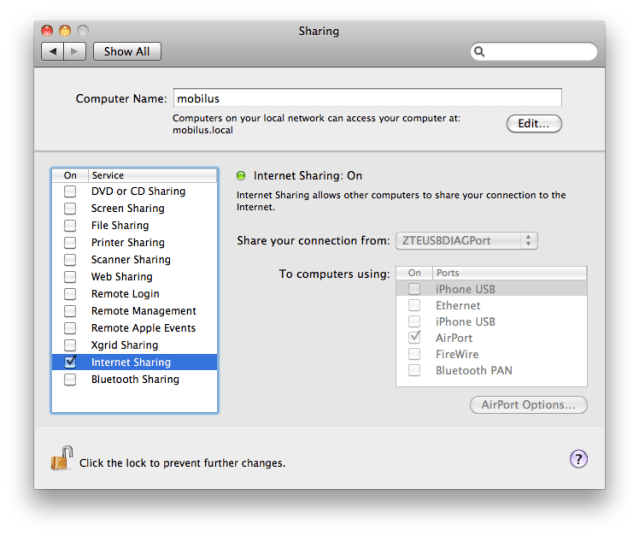
    3. Go to Systems Preferences → Sharing
    4. Select Internet Sharing
    5. Select your USB stick’s hardware from the list of ports in the “Share your connection from” section (see screenshot below)
    6. Check the “Airport” checkbox
    7. Set a network name and WEP password using the “Airport Options…” button

    Tada! You should be all set and now be able to see your mac-as-an-access-point from any wifi-compatible devices. Enjoy! 🙂

    Update: Had forgotten to attach the screenshot I mentioned. See below.
  • IM/IRC/Skype Statuses Applescript Helper

    Largely inspired by Beau’s equivalent setup, I rolled out a small Applescript to set my miscellaneous IM/IRC/Skype statues as away or available in one click.

    [sourcecode]
    set myStatus to display dialog "Select your IM Status:" buttons {"Away", "Available"} default button 1

    — Adium: Multiple IM and single IRC account statuses
    if appIsRunning("Adium") then
    tell application "Adium"
    if the button returned of myStatus is "Away" then
    send the first chat of the first chat window message "/nick stephdau|away"
    go away
    else
    send the first chat of the first chat window message "/nick stephdau"
    go available
    end if
    end tell
    end if

    — Skype status
    if appIsRunning("Skype") then
    tell application "Skype"
    if the button returned of myStatus is "Away" then
    send command "SET USERSTATUS AWAY" script name "My Script"
    else
    send command "SET USERSTATUS ONLINE" script name "My Script"
    end if
    end tell
    end if

    — iTunes
    if appIsRunning("iTunes") then
    tell application "iTunes"
    if the button returned of myStatus is "Away" then
    pause
    else
    play
    end if
    end tell
    end if

    — Helper
    on appIsRunning(appName)
    tell application "System Events" to (name of processes) contains appName
    end appIsRunning
    [/sourcecode]

    Note on Adium handling: because of my account order and the fact that I connect to IRC via ZNC, the first chat of the first chat window is always an IRC room in my context.

    I haven’t yet, but I could adapt this script to also take parameters to get the button status equivalent, then couple it with SleepWatcher or ScriptSaver to have the script triggered on sleep/wake on my MacBook Pro or when the screensaver activates/deactivates on my iMac.

  • Nerdy Mac Mischief

    http://twitter.com/markjaquith/status/4733105843740672

    To which I replied:

  • Clever Credit/Business Card Holders

    Pier-Luc found an Etsy vendor with some quite clever, yet cheap, business (and credit) card sleeves. She also sells similar iPhone pouches and more.

    PL went for the geek sleeve, so I couldn’t (…) but I happily indulged in the retro mix-tape one.

    Card holder: $13.50.
    Not having to jam a wallet in your back pocket when you go out on the town: priceless.

  • You Want Realtime? We've Got Realtime!

    Get or use your existing WordPress.com account, setup http://im.wordpress.com, http://p2theme.com, maybe even http://iphone.wordpress.org and our “Publicize: Twitter“, and you’ve got yourself one nice, quick, full-featured lifestreaming blog.
    [wpvideo v3YfaTGM]

    “At im.wordpress.com we have been experimenting with instant delivery of blog posts and comments. We started by providing a firehose for our partners but that was only the beginning. Now you can subscribe to WordPress.com blogs in your Jabber IM client and receive posts and comments the instant they are published. It is also possible to post to blogs from the chat client. In time we plan to add these real-time features to web pages. Soon the conversations on blogs will be as fast as chat rooms.”

  • ZNC Rox0rs

    It’s no secret that IRC is at the heart of all things WordPress and Automattic when it comes to realtime collaboration. I hadn’t used it in years, but am now back to being logged in for substantial portions of my days.

    With this in mind, I set out to install the excellent ZNC IRC bouncer on my home Linux server yesterday, coupled with the experimental Colloquy Push module to send relevant messages to my iPhone when not in front of my screen.

    Couldn’t have been any easier on Centos 5 (Note: actually, if you happen to have a Mac desktop or server that is powered on all the time, unlike my laptop, Colloquy has a built-in push bouncer that makes things even easier).

    Install the Fedora EPEL repo as root:

    rpm -Uvh http://download.fedora.redhat.com/pub/epel/5/i386/epel-release-5-3.noarch.rpm

    Install the ZNC daemon and related packages (and openssl-devel and g++ which weren’t installed on this box):

    yum install znc znc-extra znc-devel gcc gcc-c++ openssl-devel

    Download compile and install the Colloquy Push module:

    curl -LO http://github.com/wired/colloquypush/raw/master/znc/colloquy.cpp
    znc-buildmod colloquy.cpp
    cp colloquy.so ~/.znc/modules/

    Generate an initial configuration file (with SSL and Colloquy push module):

    znc --makeconf

    Edit the said configuration file manually to add a flag so that it stops sending push notifications to my phone if I’m already connected to the bouncer: added -attachedpush 0 to the LoadModule = colloquy line in ~/.znc/configs/znc.conf.

    Opened port 6697 (the one I chose, default would be 6667) on my home router.

    And that’s pretty much it.

    Now instead of connecting to the Automattic IRC server directly, I connect ZNC to it permanently on my server, and connect to the said ZNC bouncer (via SSL) from both my desktop IRC client, as well as the one on my iPhone (over 3G, Edge and/or wifi).

    I’ll have to wait until Monday to confirm that the push notifications are working as intended, but beyond this, it’s been stable and awesome since yesterday.

    Nice!

    Update: The push notifications are working great!

    Update 2: I forgot to mention ZNC also has a very handy web admin module. I strongly advise SSL once more, as well as considering the -noircport flag combined with a custom port.

    Update 3: After a full workweek of use, the little time I spent on installing ZNC has already proven invaluable enough for me to more than recommend it. Push notifications work brilliantly, but most of all, the buffer replay option, is the BEST FEATURE EVER! My IRC user experience has now been changed forever. Awesome!