Tag: apple

  • Great Mac Disassembly Guides

    Having a few fun plans for a 2002 iBook G3, I was searching for online instructions on how to take apart the notoriously feisty little thing. And then I found the Fixit Guide Series, by iFixit. [Cue the heavenly background music]

    Each Fixit Guide has detailed disassembly instructions that walk you through the process of easily accessing and replacing components in your iPod, PowerBook, or iBook.

    This, to me, is just brilliant. Here is a company that sells Mac parts, and has the clairvoyance to think that their customers might want to do it themselves, whether for fun or to save a few bucks, and actually helps them doing so without trashing their box. Pure genius!

    And they do it well too. All the the guides are clear, concise and well illustrated.

    I was not only able to browse and get PDF copies of all the instruction sets I’ll probably ever need for my 12″ iBook G3, but also for our Mac Minis, 13″ MacBook, 12″ PowerBooks and 17″ PowerBook at the office. And to top it all off, they even have iPod repair guides.

    I didn’t know iFixit before tonight, but now, I know where I’m shopping next time I’m searching for Mac parts online. If their service and prices match this kind of spirit, they just gained a client for life!

    Thanks, and good job guys. I’m usually not that easy. πŸ˜‰

    Update: 2006-12-10:

    I’ve been in touch with the iFixit crew after posting this, and on top of all the above, turns out they’re nice guys too. πŸ™‚

  • Praise Be Parallels Desktop's Performance

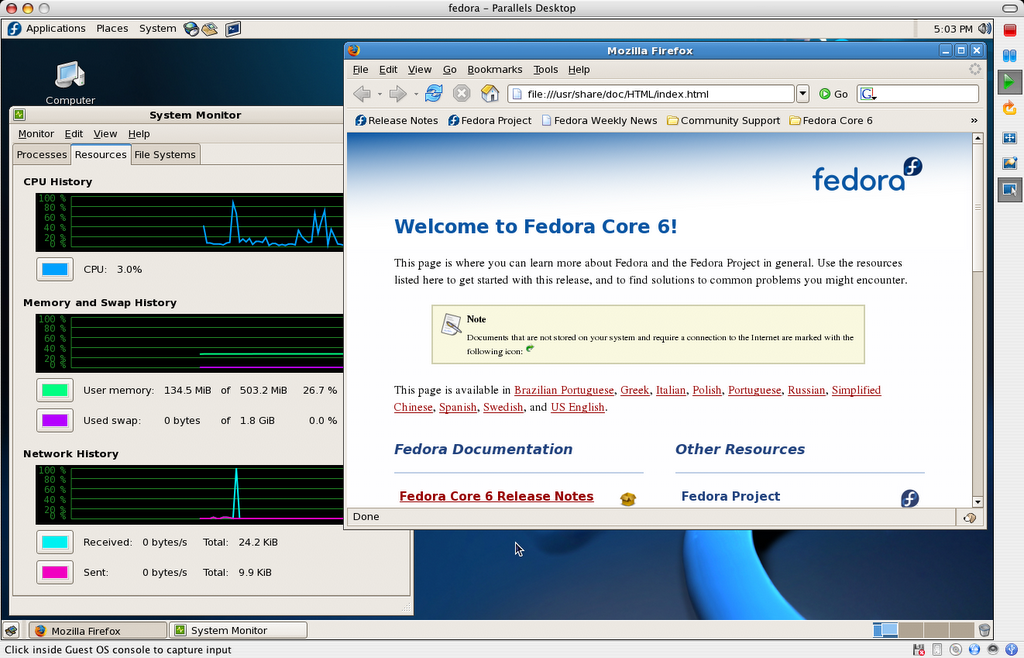
    I mean, what else can I say? If you watch the attached video, you’ll see what I mean.

    • Mac OS X 10.4.8, Parallels Desktop
    • Windows XP, Internet Explorer 7
    • Fedora Core 6, Firefox 2
    • Ubuntu 6.10 Desktop, Firefox 2

    All running on my usual 2GHz Core Duo MacBook with 2 GB RAM (512MB/VM).

    Performance is awesome. The video is in real time and the only reason the VMs were set to 800×600 was to try and keep the screencast relatively crisp when converted to a small FLV.

    Tip: It’s in the docs and all, but it took me a while to remember how to launch multiple windows in Parallels Desktop, since it loads VMs in the same window when opening them: File menu Β» New Window

  • Screencast: Fedora Core 6 Install in Parallels Desktop

    This screencast illustrates installing Fedora Core 6 Linux as a virtual machine in Parallels Desktop for Mac. It is based on the series of screenshots offered for download, along with the resulting virtual machine, in my previous post.

    Related posts:

    Enjoy!

  • Linux Install Screencasts Coming Soon

    I’ve been toying around in iMovie, experimenting with it as a screencast tool. A bit away from what I usually do with it, but it’s not bad so far. Fun and easy to work with, as usual.

    Nothing fantastic, but I have a few Linux install movies coming up in the next few days. I’m also going to try uploading them to MetaCafe. We’ll see how it goes.

    Trying to fit this between my 7 year-old son’s hockey games (so far undefeated!).

  • Compiling and Using ClusterSSH on Mac OS X

    The challenge

    We use a cluster of GNU/Linux-powered nodes behind a Cisco load balancer to serve some of our web sites. These nodes being quasi-identical (most config, filesystems, etc), we often need to apply the very same changes, via ssh, to each of them at once in our daily maintenance tasks.

    ClusterSSH to the Rescue

    ClusterSSH is a small Perl/TK utility that controls a number of xterm windows via a single graphical console window to allow commands to be interactively run on multiple servers over an ssh connection. This means that you type your shell commands once, and they simultaneously run on all of the servers ClusterSSH is connected to.


    CusterSSH in action on Mac OS X (Tiger, MacBook)

    A perfect fit for our needs, but not quite limited to our higher end environment. Using ClusterSSH, you can control x number of computers via ssh, whether they are exact replicas of one another (cluster) or not. This can be especially useful in a computer lab environment, or with any large number of similar systems that you want to edit from the command line.

    EG: You can easily run softwareupdate on OS X or yum/apt on Linux, or even download a file from a central server, on all the computers in your office at once and without the need for more elaborate or expensive graphical solutions.

    For the record, there is another project on SourceForge that shares the same purpose and executable name (cssh), but that project has not seen a release since 2004, unlike ClusterSSH, which seems to be kept rather well up-to-date by its developer(s).

    But wait, we’re on OS X

    ClusterSSH is an X11-based application, which Apple has been providing a port for OS X for years. But if you are on an Intel-based Mac, you might have been wondering where to find the said port for your architecture, since it is not an install option on the DVD provided with your new machine. Well, it is there, but the installer package is in fact in a directory hidden from the Finder.

    To install Apple’s X11 built for your MacIntel, simply do the following:

    • mount the DVD that came with your Mac
    • open a terminal window
    • type open /Volumes/[OSX_DVD]/System/Installation/Packages/X11User.pkg where [OSX_DVD] is the volume name of the install DVD
    • go through the newly launched installer
    • tada!

    Maybe Apple thought their Universal Binary version was only half-baked (…), at least until the latest update they released on November 13, which was itself Intel-ready. Should you choose not to install the latter, you will be prompted to update X11 the next time you run Software Update.

    The Perl install that comes bundled with OS X lacks one of the modules that ClusterSSH relies on to provide a small GUI window for you to type your distributed commands in: Tk. Depending on when you read this (2006-11-21), you might want to run a CPAN search for a newer version than the one I link to.

    Installing Tk is quite easy if you are familiar with the terminal, and requires for you to have installed the Developer Tools that came bundled with OS X.

    • get the latest Perl/Tk module from CPAN
    • decompress the downloaded archive
    • important: open X11 (Applications Β» Utilities), and use its terminal for the next steps
    • cd to the Tk folder
    • perl Makefile.PL
    • make
    • make test
    • sudo make install
    • and you should be done

    The make test step will procedurally try the miscellaneous X interface components that Perl/Tk provides, hence the need to run it in X11. All went fine in my context, but you can find more information on Steve Lidie‘s site at Lehigh University if needed: Perl/Tk and Mac OS X.

    On to compiling ClusterSSH

    Now that we have met ClusterSSH prerequisites (X11::Protocol is bundled with OS X), we can move on and compile the software for OSX.

    • get the latest version of the source from the official site.
    • decompress the downloaded archive
    • in a terminal window, cd to the clusterssh-* folder
    • ./configure
    • make
    • sudo make install

    On many UNIX systems, you might now be able use the cssh command, but in OS X, you will probably need to make sure that your environment knows to look for software in /usr/local/bin by default, particularly in the terminal. To do so:

    • go back to the terminal
    • type env
    • see if /usr/local/bin is part of the list making up the PATH variable
    • if not type export PATH=$PATH:/usr/local/bin then exit.

    And that is essentially it…

    Using ClusterSSH

    Now that everything is installed, keep in mind that the purpose of this software is to run the same actions on a number of connected computers, which obviously has tremendous advantages, but also countless dangers.

    Read every command before running them, and make sure you did not accidentally or temporarily shifted the window focus to one of the nodes, therefore processing your request one one of the hosts only.

    Before you start using cssh, make sure to have a user with the same username and password combination on all of the targeted hosts, unless you opted to pass some of these parameters in the individual connection strings.

    Then, in an X11 terminal window, use the cssh command as illustrated below:

    cssh user@your.host.1 user@your.host.2 user@your.host.3 [...]

    When all of the windows are launched, be sure to
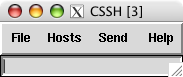
    put t
    he focus on the small window (see right) and type your commands. In most cases, this will mean starting by typing your password to the computers your are connecting to. And then, you’re off to the races.

    You can take some steps to make your time with ClusterSSH easier, such as using ssh keys to forgo having to type a password altogether (think about security though). You can also write a small shell script already containing the full list of nodes you are most often connecting to.

    I have successfully tested ClusterSSH on Mac OS X 10.4.x (Tiger) on:

    For more information you can now use man /usr/local/man/man1/cssh.1 in the terminal to see the full cssh documentation, or see the online FAQ.

    But please, do keep reminding yourself that the old “rm -rf ~/*” clichΓ© is multiplied by the number of hosts you are connected to. πŸ˜‰

    Enjoy.

    Update 1: a comment attached to this post led me to a similar tool that has its own advantages, and is well worth mentioning here: dsh.

    Update 2: for those of us also running GNU/Linux, ClusterSSH is also available as a pre-compiled Debian package and Fedora RPM.

  • Having a bad tech weekend…

    I started on a quest to install Linux PPC on my older iBook G3 yesterday. I wanted to try and breathe some productivity back into it, as Apple has been phasing out G3 support over the last few years. But I’m not having too much luck so far…

    I first installed Fedora Core 6 PPC, which all seemed fine until I tried to put the laptop to sleep. The whole thing crashed on wake up, and corrupted GNOME so bad, for all users, that I was unable to recover from it, even after rebooting…

    Fedora Core 6 error when waking the G3 iBook from sleep
    Not being in the mood to troubleshoot the thing, I decided to give a try to Ubuntu Desktop 6.10 PPC instead. Again, the install went fine, and sleep was working this time, but then I was quickly remembered why I stuck to a server environment when running Linux PPC in the past: no flash, no easy way to play video (vlc, mplayer, xine, ffmpeg, etc all crashed), no java, no wpa wireless security protocol setup by default, etc.

    Aaaaaaaargh! I’ve had enough of that for one weekend… And it’s not for lack of trying, as I’ve probably spent more than 12 hours giving it all a fair try. But not being the type to just give up completely, I’m getting the FC6 PPC DVD at work as we speak, and I’ll try again next week. Knowing Linux, there are probably solutions to most of my problems.

    We shall see.

  • Fedora Core 6 VM Image for Parallels Desktop for Mac

    A comment over at OSNews mentioned someone having wished for more information than I provided in my previous post on installing Fedora Core 6 in Parallels Desktop.

    So last night, thinking about how to accommodate the request, I could hardly picture more effective ways to do so than:

    • to provide a series of screenshot of the setup and install process,
    • and maybe even a ready-built VM image of the said install.

    Well, you do know what’s coming right? πŸ™‚

    FC6_Basic_For_Parallels_Desktop-Install_Screenshots.zip:
    http download (15.3MB)
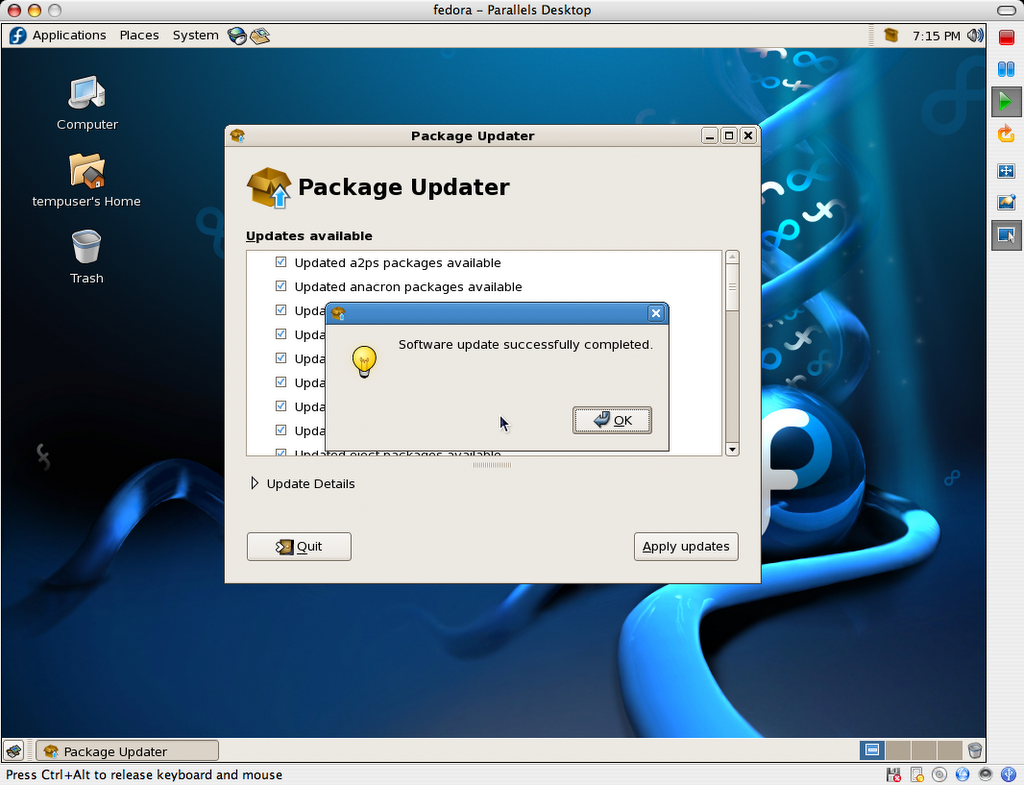
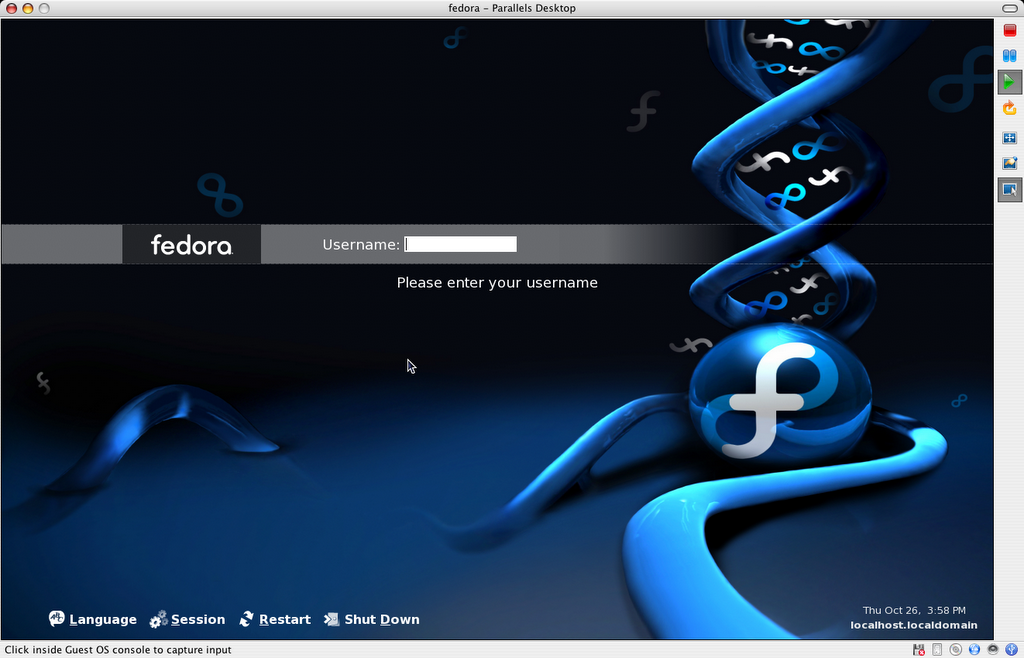
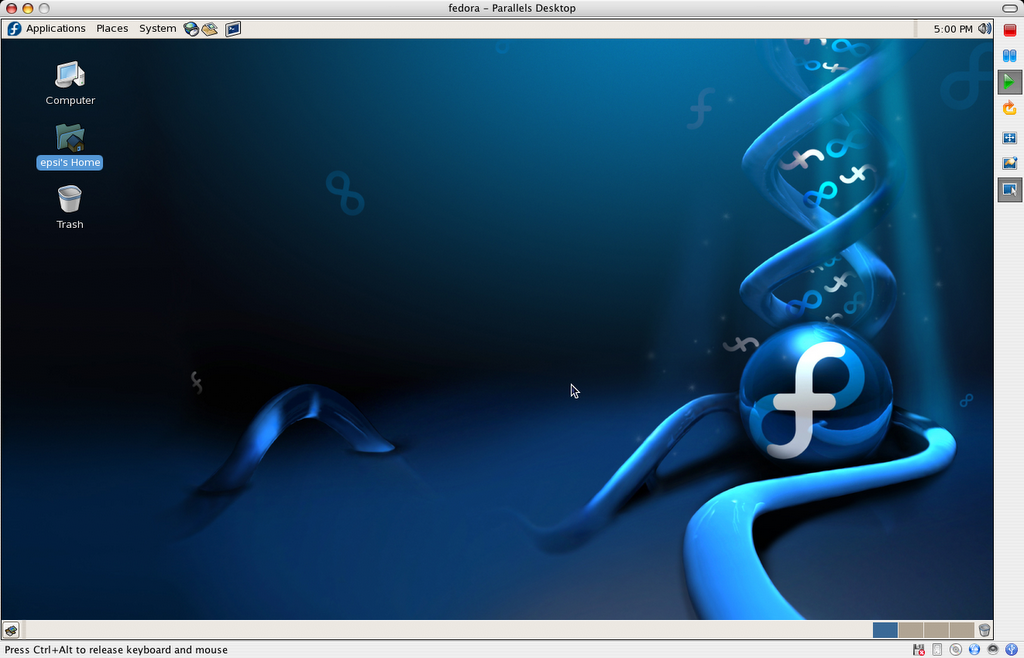
    This package contains 67 PNG screenshots of the installation procedure. They show the complete process, from setting up the Parallels VM image to shutting down a freshly installed and updated copy of Fedora Core 6. Yes, I could have produced a screencast too, but I honestly don’t have the time these days, and someone else may do so using these very images, if so inclined. (update: I did after all)

    FC6_Basic_For_Parallels_Desktop-20061101.zip:
    http download (728.7MB)
    This is outcome of the install process shown in the above screenshots. It is fully ready to go, as long as you already have Parallels Desktop installed (licensed or demo). I simply compressed the folder as a zip file because I was able to output a file about 60-70MB smaller than even a compressed disk image (.dmg).

    Here is a SHA1SUM of the above files.

    Current hosting is generously provided by the McGill Linux Users Group, so please feel free to mirror, or create a torrent, and redistribute all of the present files. Until we have a new badly needed incarnation of the McLUG web site going, you can post your mirror addresses and/or torrent file download info right here, as comments. I will compile a list and add it to this file as (and if) they become available.

    The VM package includes:

    • fedora.pvs: Parallels Desktop config file
    • fedora.hdd: 8GB virtual hard disk (auto-expanding, currently using 2.24GB)
    • README.txt: helpful info, support terms (ie: zero, nada, ziltch πŸ™‚
    • Fedora Core 6 Install Screenshots: bundled install screenshots
    • Fedora Mirrors.webloc: OS X bookmark for the official Fedora mirror list
    • boot.iso: fedora boot disk used in original http install process

    The install was completed on a Fall 2006 Apple MacBook (Intel Core Duo, 2GHz, 2GB RAM), and was also tested on a Fall 2006 20-inch iMac (Intel Core Duo, 2.16GHz, 2GB RAM).

    Once you have Parallels Desktop for Mac installed, simply double-click or open fedora.pvs to get going.

    Important: The root password is changeme, and the default user is setup as tempuser, with a password of changeme also.

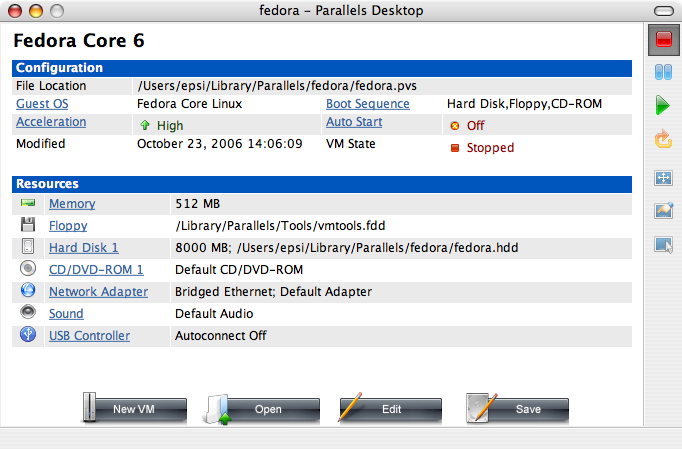
    This virtual machine is currently configured to use 512MB RAM. The VM’s default screen resolution is set to 1024×768. You can change any and all of its settings to your heart’s contempt.

    Please note that this work is provided without support, and on a “works-for-me” basis only at this time.

    So there you have it. Enjoy!

    Update: I found a forum thread linking to more ready-to-go GNU/Linux images for Parallels Desktop: Ubuntu, Xunbuntu, etc.

    Update 2: I’ve had to update the links to the download locations above to accommodate for a new VMWare image I’m also working on. You should update your links if you pointed to the image directly on your site or other (though I’d advise to point to this very page instead, since its location will not change).

    Update 3: I now also have a VMWare FC6 image for download.

    Update 4: I have produced a screencast from the above series of screenshots.

  • Fedora Core 6 (Zod) in virtualized environment

    I got to install Fedora Core 6 twice yesterday, in very different contexts, and I’m so far rather pleased with the outcome of my stay in Zod-land. This, despite minor setbacks which were very much due to my requirements, and some not truly Fedora related.

    My first run with the new Core 6 was a clean install on a late 2006 Apple MacBook (2 GHz Intel Core Duo), virtualized through Parallels Desktop.

    Not having had time to keep up with the beta phase this time around, I walked into this one head first with my eyes closed, so I wasn’t expecting the process to be flawless, provided the environment I was facing.

    Because of quasi constant network access and the availability of a very good regional mirror, my preferred way to install or upgrade my Fedora boxen is to proceed with a net install, starting from the minuscule, by today’s standards, provided boot disc (boot.iso).

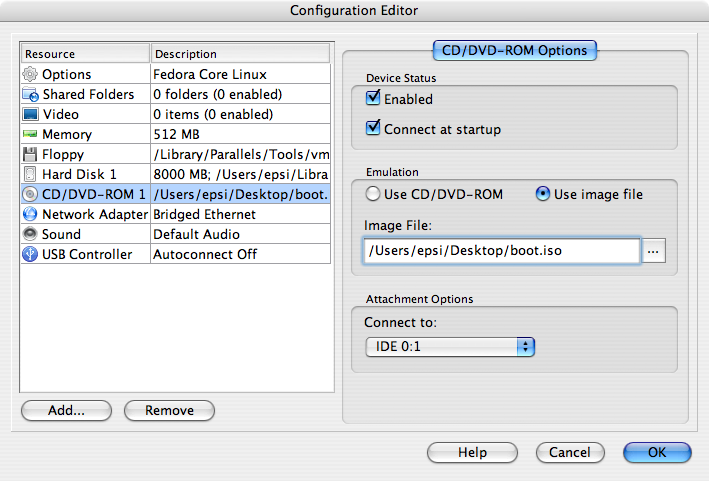
    As an insight, Parallels will let you select the latter ISO disc image to act as your VM‘s CD/DVD drive, so that you can skip burning the boot disc to a removable media.

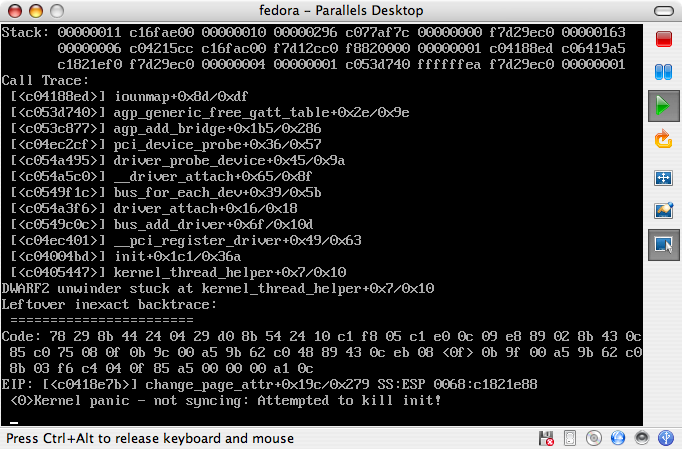
    Launching the installer through a new Parallels VM, I was unfortunately immediately faced with a hurdle. Namely, I was getting what seemed to be a hardware detection related kernel panic at boot time. As it turns out, this was not Fedora specific, but is a known issue with the Parallels Desktop product suite.

    A few web queries and a friend‘s wisdom quickly netted valuable results from the Parallels support forums technical discussions.

    The problem was easily bypassed by setting the VM’s memory settings to the very specific value of 512 MB of RAM. Good thing my laptop is loaded with 2GB, which I’ll add is highly desirable for virtualization purposes.

    For the record, I noticed that 256 and 924 MB also helped me get passed the early detection bug and into the Anaconda installer process, but only 512 would not revert back to a kernel panic on reboot once the install process was completed.

    Since then, someone actually posted a Fedora Core 6 v. Parallels specific thread which you might also want to read through. I haven’t had the chance to implement the proposed solution, and I’ll admit that the lazy geek in me is ushering that 512 MB of RAM will be just fine for what I need to achieve in this instance.

    Once this was all figured out, and I have to state that it was my first GNU/Linux install under Parallels, the install process was as straightforward as any I’ve ever been through (countless native and VMWare Workstation instances).

    Two noteworthy additions to FC6’s Anaconda, from a user’s perspective, are the automatic retrieval of the latest version of the software you are installing, instead of the base version, and the optional selection of the Extras repository directly within the installer.

    Unfortunately, I was not able to configure sound for my MacBook at install time, but I doubt this will be an issue for long, since it uses Intel’s onboard audio and video chipsets, which are well understood and supported by the open source development community.

    Finally, for a last very context specific issue, I faced something that wasn’t a show stopper, but could have left some users perplex. During the installation, which I ran in windowed-mode (ie: not full screen), I continued to interact with OS X (browsing, etc), and therefore brought the mouse focus back to the host OS. But once the install procedure was complete within the VM, I was unable to focus the cursor back into Fedora to agree to the system reboot prompt. Again, I did not deem this to be more than an annoyance, because the point was to restart and I was able to do so via the VM console’s reboot button, but this hiccup could have been more serious if Fedora had required further user input.

    So on I went with the first boot, and the kernel and all of the desired daemons loaded without a hitch. I had chosen to go with a base install, to initially save time, which of course means that your mileage may vary, should you decide on a larger software selection. Historically though, it seems that most post-install boot related errors occur with the base system, more than the higher level add-ons, unless you chose to add core modules or such deep components through the Extras repository.

    All went pretty much flawlessly from then on. Close to what I would expect running Fedora through dual-booting my Mac instead, which I’m sure has its own share of nitty gritty details.


    One slight disappointment at this time is that despite the long list of guest OSes that Parallels Desktop for Mac supports, they do not provide a Linux version of their Parallels Tools, which help deliver customized hardware drivers to the virtualized operating system. I somehow find this puzzling, given that the documentation lists the now obsolete OS2 as being an option for these useful, but non mandatory, utilities. But I guess a dead OS is an easy one to support. πŸ™‚

    So to conclude, I won’t bore you with a deeper usability and performance review of this proud and shiny new piece of OSS engineering, since you can find much more elaborate ones all over the Net (1, 2) but I’ll soon post about my further toying with Fedora through a native FC5 to FC6 upgrade on x86 architecture with my home file/media/LAMP server.

    And if you never dared taking the GNU/Linux plunge, now might just be the time, although you might also want to wait to hear about Edgy, the soon to be realeased next generation Ubuntu offering, which also promises to be a quality product.

    Update 1: fixed a typo that led a funny comment on osnews.com. I also tried to address the OS2 part of the latter comment in a related comment below.

    Update 2: I now have a similar virtual machine image for download, as well as a complete install screencast.