Category: Uncategorized

  • Warhol's "You Are the One" to Premiere at the Detroit MoNA

    If you are in or near Detroit on November 12th 2006, you will have the chance to a attend what might be the only screening of a long lost Andy Warhol short digital film, created in the mid-80’s using Amiga computers, at the Museum of New Art.

    Until its 2001 discovery, what had only been hinted at and rumored is that Warhol had actually created a short digital film on one such computer, probably the first such digital creation by any important artist. Titled YOU ARE THE ONE, the digital stills were discovered on a floppy diskz among thousands in Warhol’s estate. […] However, due to threatened legal action tied to estate disputes and to its pending seizure, the museum will only be allowed a one day screening of the film.

  • Passive House Platform

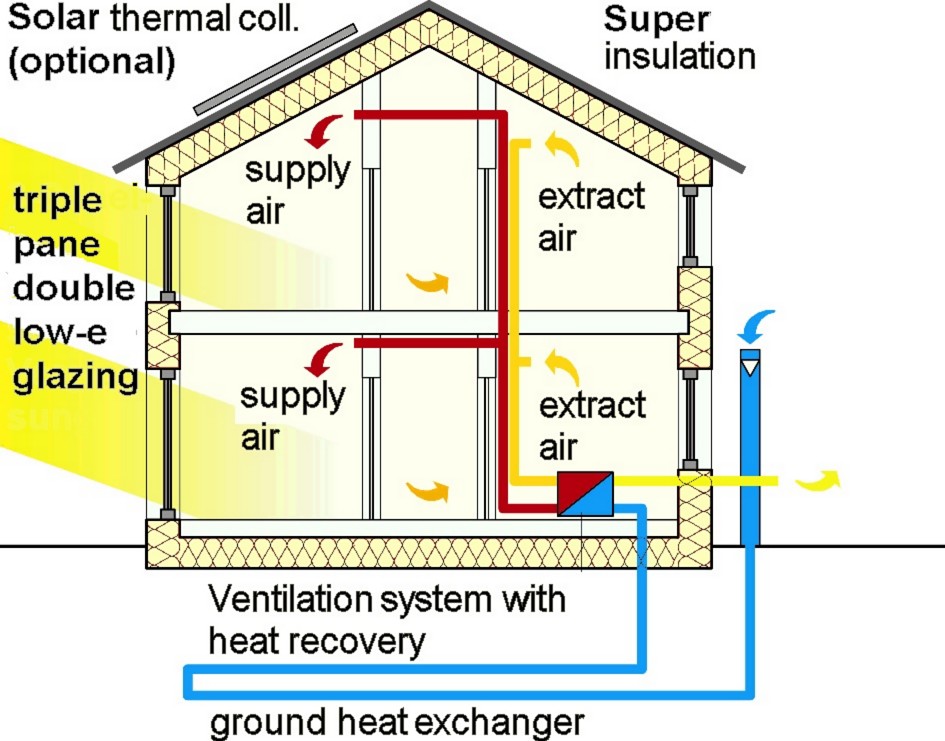
    Browsing through Leonardo Energy, I found a post pointing to a very interesting webcast on a European standard geared toward ultra-low energy building, referred to as passive houses.

    The term passive house refers to a specific construction standard for residential buildings with good comfort conditions during winter and summer, without traditional heating systems and without active cooling. Typically this includes very good insulation levels, very good airtightness of the building, whilst a good indoor air quality is guaranteed by a mechanical ventilation system with highly efficient heat recovery.

    Related links:

  • Googly Googly Goo

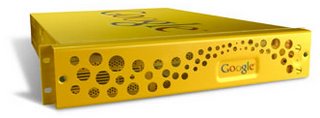
    If I was Glen Quagmire, the title of this post is probably what I’d be saying right now. See, we just received a new toy at work today! Namely, a Google Search Appliance (GB-1001).

    Google Search Appliance

    I’ll of course try to post my impressions shortly, but here is some reading material I combed through recently:

    Now, to not let it shoot down my productivity on the other stuff I need to get done…

  • Fedora Core 6 VM Image for VMWare

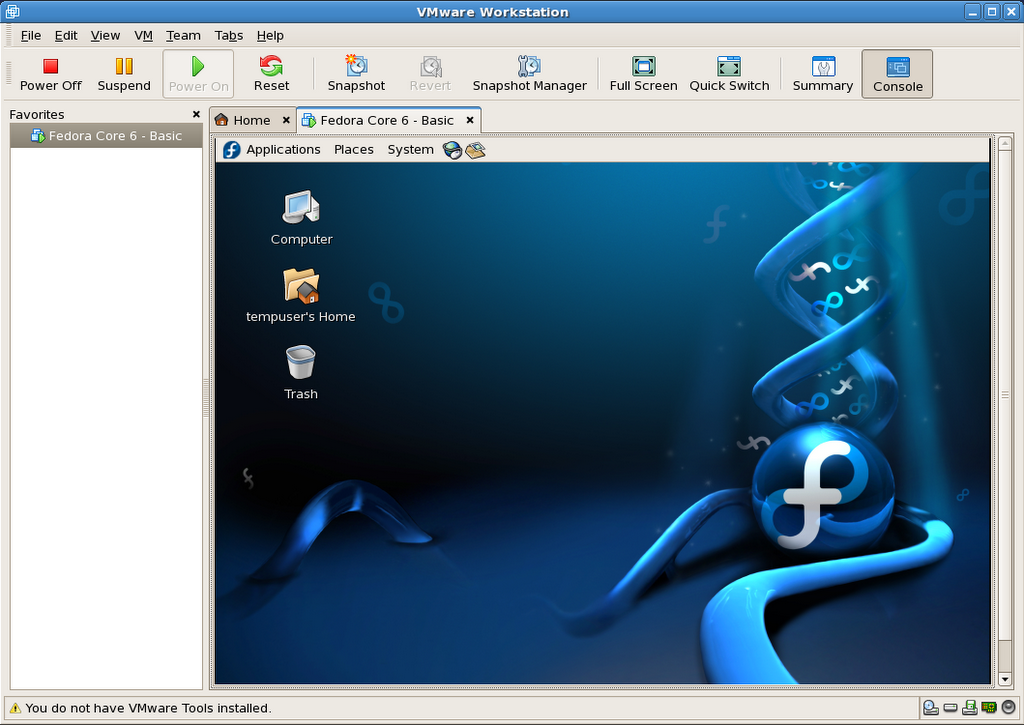
    As previously mentioned, I have prepared a VMWare equivalent to the Fedora Core 6 image I am distributing for Parallels Desktop.

    You can find the details below:

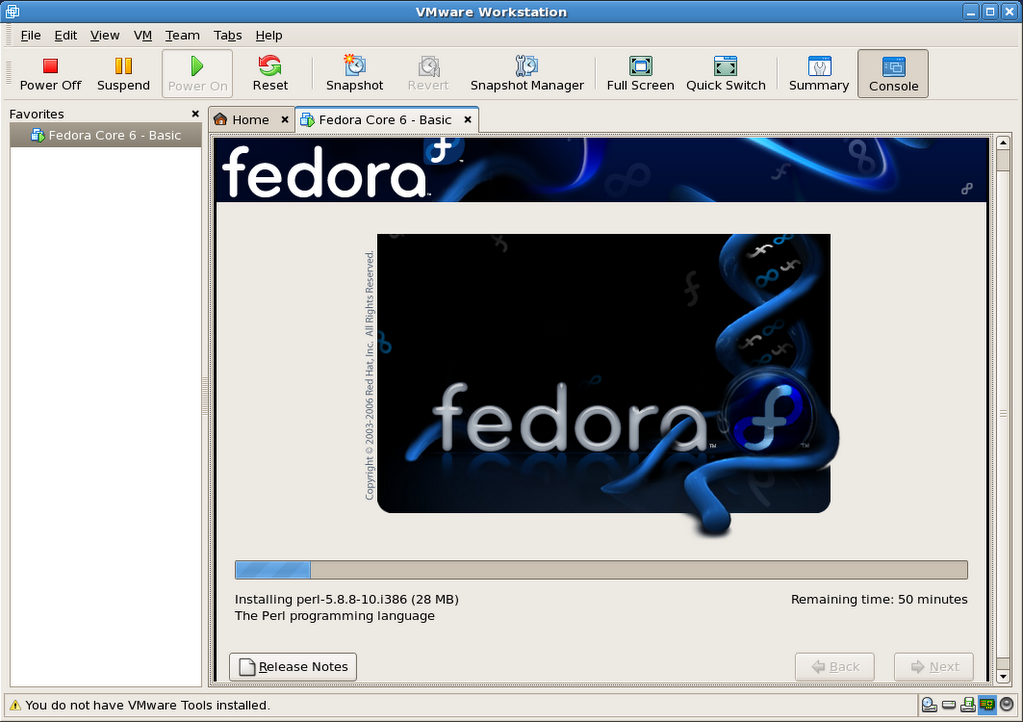
    FC6_Basic_For_VMWare_5.5.x-Install_Screenshots.tar.gz:
    http download (12.1MB)
    This package contains 76 PNG screenshots of the installation procedure. They show the complete process, from setting up the VMWare image to shutting down a freshly installed and updated copy of Fedora Core 6. Please feel free to produce and distribute a screencast using these very images, if so inclined, as I do not have the time to do so myself right now. (update: I did after all).

    FC6_Basic_For_VMWare_5.5.x-20061105.tar.gz:
    http download (733.4MB)
    This is outcome of the install process shown in the above screenshots. It is fully ready to go, as long as you already have VMWare installed (free player or other).

    Here is a SHA1SUM of the above files.

    Current hosting is generously provided by the McGill Linux Users Group, so please feel free to mirror, or create a torrent, and redistribute all of the present files. Until we have a new site for the McLUG, you can post your mirror addresses and/or torrent file download info right here, as comments. I will compile a list and add it to this file as (and if) they become available.

    The VM package includes:

    • Fedora Core 6 – Basic: VMWare virtual machine folder
    • README.txt: helpful info, support terms (ie: zero, nada, ziltch πŸ™‚
    • Fedora Core 6 – Basic – Install Screenshots: originally installed on an P4 1.65GHz
    • Fedora Mirrors.html: copy of the official Fedora mirror list
    • boot.iso: fedora boot disk used in original http install process

    The install was completed on a Pentium 4 tower (1.65GHz, 1.5GB RAM) running VMWare Workstation 5.5.2 in Fedora core 6, and was also tested on a custom P4 3GHz system running Windows XP SP2 (player), as well as another P4 1.65GHz, but running Fedora Core 5 (workstation).

    Once you have VMWare installed, simply double-click or open “Fedora Core 6 – Basic/Fedora Core 6 – Basic.vmx” to get going.

    VMWare will most likely prompt you for a few things to adapt the image to your environment:

    • Prompts to create a VM unique identifier: choose yes
    • Prompts to map the virtual floppy drive to match yours: choose yes
    • Warns that the VMWare Tools are not installed: I did not bundle them as I’m unsure if VMWare would let me distribute the image freely once installed in the VM.

    Important: The root password is changeme, and the default user is setup as tempuser, with a password of changeme also.

    This virtual machine is currently configured to use 512MB RAM. The VM’s default screen resolution is set to 800×600. You can change any and all of its settings to your heart’s contempt.

    Please note that this work is provided without support, and on a “works-for-me” basis only at this time.

    So there you have it. Enjoy!

    Update 1: Here is another source of ready-built VMWare images.

    Update 2: 2006-11-29: Related post: Screencast: Fedora Core 6 Install in VMWare Workstation

    Update 3: 2006-12-22: This VM will also run as is in the new VMWare Fusion Beta for Mac.

  • Queue the hold music: ta dadada, tada, tadada…

    I’m currently installing Fedora Core 6 in VMWare Workstation 5.5.2-29772 to provide an equivalent VM image to the one I’m distributing for Parallels Desktop for Mac.

    Check back soon to see how it all pans out.

    Update: It’s all done, but I’m going to test it on a few machines before I post it, most likely tomorrow.

  • Geek Armed Forces?


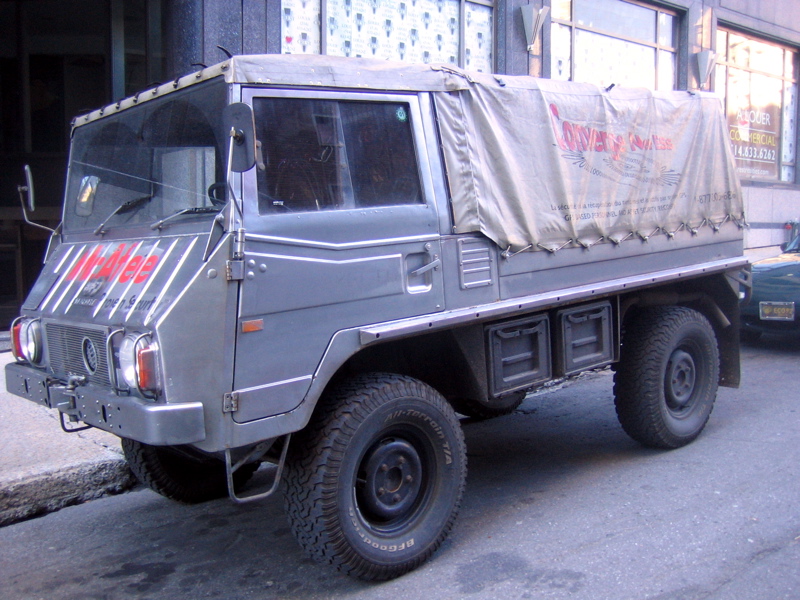
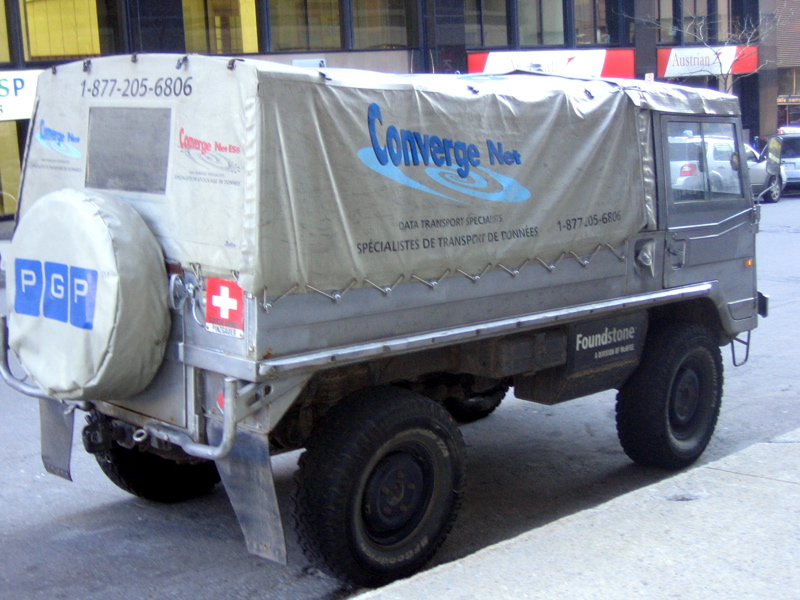
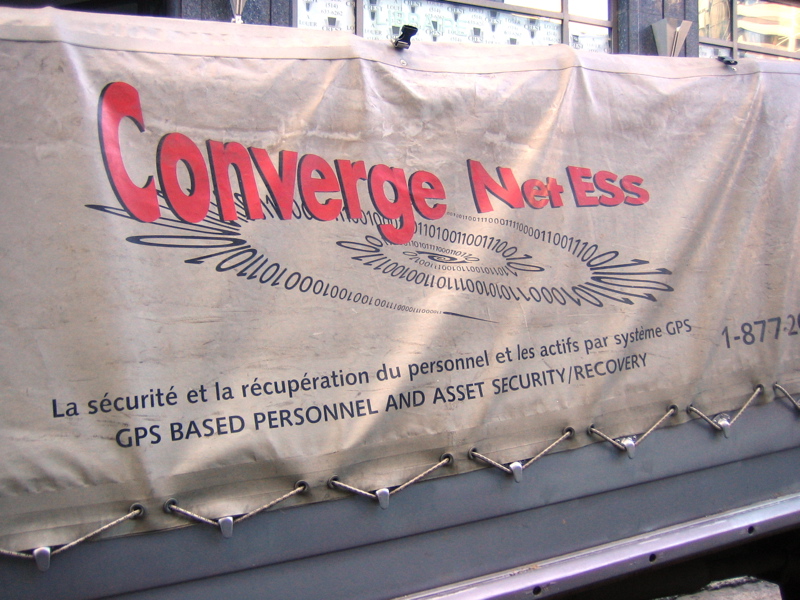
    Not sure what this is really about, but what a low tech vehicle for such high tech companies. Marketing bit? Tech consultant / off-road fan? Wannabe Geek Squad? Puzzling… (see update)

    Well, low tech is actually not quite appropriate, given the marvel of engineering that the Pinzgauer 710M was and still is.

    Spotted on November 2nd 2006, at the corner of Sherbrooke Street West and Union Avenue, Montreal, Quebec, Canada.

    Related links:

    Update: See comments below for more information, provided by the owner and his Pinzgauer blog for more photos.

  • Fedora Core 6 VM Image for Parallels Desktop for Mac

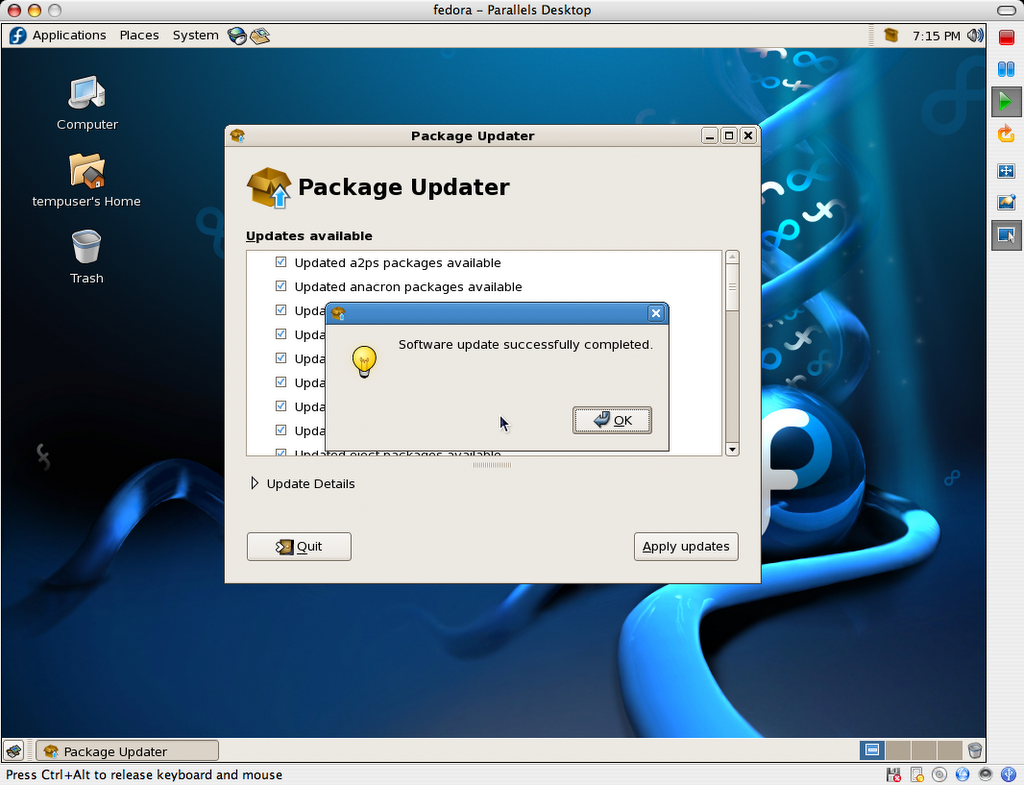
    A comment over at OSNews mentioned someone having wished for more information than I provided in my previous post on installing Fedora Core 6 in Parallels Desktop.

    So last night, thinking about how to accommodate the request, I could hardly picture more effective ways to do so than:

    • to provide a series of screenshot of the setup and install process,
    • and maybe even a ready-built VM image of the said install.

    Well, you do know what’s coming right? πŸ™‚

    FC6_Basic_For_Parallels_Desktop-Install_Screenshots.zip:
    http download (15.3MB)
    This package contains 67 PNG screenshots of the installation procedure. They show the complete process, from setting up the Parallels VM image to shutting down a freshly installed and updated copy of Fedora Core 6. Yes, I could have produced a screencast too, but I honestly don’t have the time these days, and someone else may do so using these very images, if so inclined. (update: I did after all)

    FC6_Basic_For_Parallels_Desktop-20061101.zip:
    http download (728.7MB)
    This is outcome of the install process shown in the above screenshots. It is fully ready to go, as long as you already have Parallels Desktop installed (licensed or demo). I simply compressed the folder as a zip file because I was able to output a file about 60-70MB smaller than even a compressed disk image (.dmg).

    Here is a SHA1SUM of the above files.

    Current hosting is generously provided by the McGill Linux Users Group, so please feel free to mirror, or create a torrent, and redistribute all of the present files. Until we have a new badly needed incarnation of the McLUG web site going, you can post your mirror addresses and/or torrent file download info right here, as comments. I will compile a list and add it to this file as (and if) they become available.

    The VM package includes:

    • fedora.pvs: Parallels Desktop config file
    • fedora.hdd: 8GB virtual hard disk (auto-expanding, currently using 2.24GB)
    • README.txt: helpful info, support terms (ie: zero, nada, ziltch πŸ™‚
    • Fedora Core 6 Install Screenshots: bundled install screenshots
    • Fedora Mirrors.webloc: OS X bookmark for the official Fedora mirror list
    • boot.iso: fedora boot disk used in original http install process

    The install was completed on a Fall 2006 Apple MacBook (Intel Core Duo, 2GHz, 2GB RAM), and was also tested on a Fall 2006 20-inch iMac (Intel Core Duo, 2.16GHz, 2GB RAM).

    Once you have Parallels Desktop for Mac installed, simply double-click or open fedora.pvs to get going.

    Important: The root password is changeme, and the default user is setup as tempuser, with a password of changeme also.

    This virtual machine is currently configured to use 512MB RAM. The VM’s default screen resolution is set to 1024×768. You can change any and all of its settings to your heart’s contempt.

    Please note that this work is provided without support, and on a “works-for-me” basis only at this time.

    So there you have it. Enjoy!

    Update: I found a forum thread linking to more ready-to-go GNU/Linux images for Parallels Desktop: Ubuntu, Xunbuntu, etc.

    Update 2: I’ve had to update the links to the download locations above to accommodate for a new VMWare image I’m also working on. You should update your links if you pointed to the image directly on your site or other (though I’d advise to point to this very page instead, since its location will not change).

    Update 3: I now also have a VMWare FC6 image for download.

    Update 4: I have produced a screencast from the above series of screenshots.
  • Halloween Night 2006

    Well, it’s now officially Halloween night, and I have a steady stream of little (and not so little) ones coming at my door as we speak… Whoops, doorbell… [pause] Here, another few seconds before the… [pause] next ones arrive. I staid back on candy duty, as my wife brought our kiddos trick or treating. So have fun! We sure will.

    I took the pictures below without flash. It just fits the atmosphere better. πŸ™‚


    Pumpkin carving fun with the kids. Messy!


    Boo! Can you tell my spouse is into Halloween?

  • MDI Compressed Air Technology (C.A.T)

    Digg.com led me (1, 2) to a short article on what could prove to be a promising technology: a vehicle powered by compressed air, also available as dual energy hybrid engine.

    Being a syndicated article formatted for print and broadcast, there were no links to further references, so I researched the subject a bit deeper and found a slew of information on this clever French-built innovation (though the concept isn’t new).

    Here are a few of the links I found interesting:

    The reasons and challenges involved are obvious, but I hope MDI finds an effective way to muffle the vehicle’s rather loud audible output. Zero or reduced emissions are definitely a very respectable and timely achievement, but noise/sound pollution can also be quite a scourge, particularly in urban areas.

    All in all, I can picture a great future for this technology, especially in the Third-World in the short term, which has so far been more opened than wealthier countries to fossil fuel alternatives.

  • Freakish Halloween Cake

    My wife received and forwarded me a chain email last week detailing how to make this insanely realistic Halloween cake.

    Just take a peek at the pictures below for our take on it, and you’ll see what I mean… Click on the pict’ for a larger view.

    Cake ingredients:

    • 1 box spice or German chocolate cake mix
    • 1 box of white cake mix
    • 1 package white sandwich cookies
    • 1 large package vanilla instant pudding mix
    • A few drops green food coloring
    • 12 small Tootsie Rolls or equivalent

    Serving dishes and utensils

    • 1 NEW cat-litter box
    • 1 NEW cat-litter box liner
    • 1 NEW pooper scooper

    From the email:

    1) Prepare and bake cake mixes, according to directions, in any size pan. Prepare pudding and chill. Crumble cookies in small batches in blender or food processor. Add a few drops of green food coloring to 1 cup of cookie crumbs. Mix with a fork or shake in a jar. Set aside.

    2) When cakes are at room temperature, crumble them into a large bowl. Toss with half of the remaining cookie crumbs and enough pudding to make the mixture moist but not soggy. Place liner in litter box and pour in mixture.

    3) Unwrap 3 Tootsie Rolls and heat in a microwave until soft and pliable. Shapethe blunt ends into slightly curved points. Repeat with three more rolls. Bury the rolls decoratively in the cake mixture. Sprinkle remaining white cookie crumbs over the mixture, then scatter green crumbs lightly over top.

    4) Heat 5 more Tootsie Rolls until almost melted. Scrape them on top of the cake and sprinkle with crumbs from the litter box. Heat the remaining Tootsie Roll until pliable and hang it over the edge of the box. Place box on a sheet of newspaper and serve with scooper. Enjoy!

    We’ve modified the recipe slightly with our own ingredients, but that sure is going to make one big surprise at the Halloween party tonight! I wonder how people with cat allergies will react?!? πŸ˜‰

    Update: It was heavy, as expected, but very good.